Bots
Settings → Bots
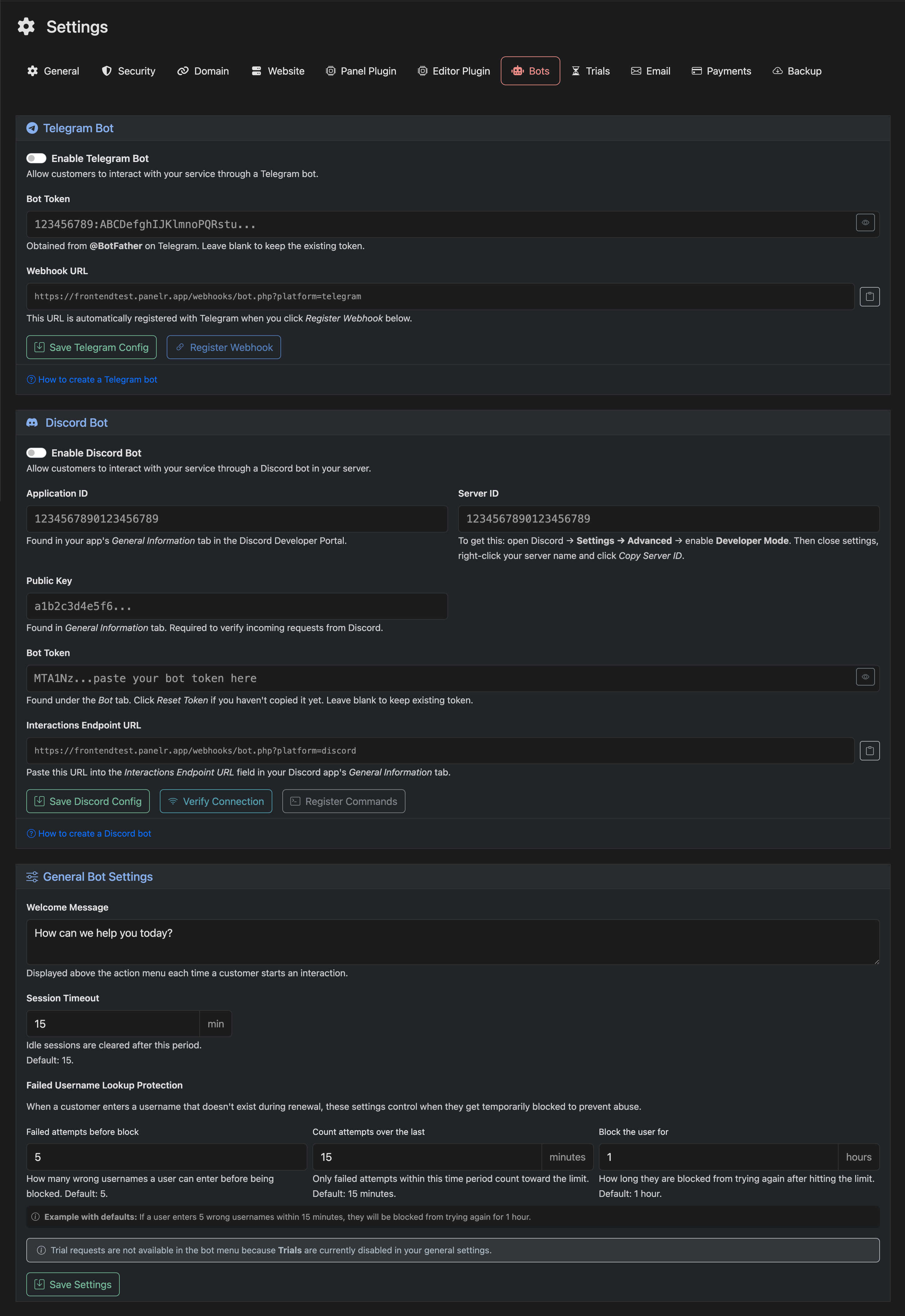
Use this page to deploy and manage your Telegram and Discord bots.
Panelr bots mirror your website functionality. Customers can start and complete actions directly inside Telegram or Discord without leaving the platform.
Supported actions include trials, activations, renewals, and pricing inquiries. The experience is consistent with your website.
Telegram Bot
Enable Telegram Bot
Turn this on to allow customers to interact with your service through Telegram.
Bot Token
Paste the token provided by Telegram.
Webhook URL
This URL is generated automatically. It is registered with Telegram when you click Register Webhook.
Setup (Telegram)
- Open Telegram and search for @BotFather
- Send /newbot
- Enter a display name for your bot
- Enter a username ending in “bot”
- BotFather will return a token
Paste the token into the Bot Token field, click Save Telegram Config, then click Register Webhook.
Discord Bot
Enable Discord Bot
Turn this on to allow customers to interact with your service through Discord.
Application ID
Copy from your Discord application’s General Information page.
Server ID
Enable Developer Mode in Discord, then right-click your server and copy the Server ID.
Public Key
Found in your Discord application under General Information. Used to verify requests.
Bot Token
Under the Bot tab in Discord Developer Portal, click Reset Token and copy it.
Interactions Endpoint URL
Copy this URL and paste it into your Discord application under General Information.
Setup (Discord)
Go to discord.com/developers/applications and create a new application
- Name your bot
- Copy Application ID and Public Key into Panelr
- Get your Server ID from Discord
- Generate and paste your Bot Token
- Paste the Interactions Endpoint URL into Discord and save
Back in Panelr:
- Click Save Discord Config
- Click Verify Connection
- Click Register Commands to enable /start and /menu
Use the invite link to add the bot to your server. Required permissions are pre-configured.
General Bot Settings
Welcome Message
This message is shown when a user starts interacting with the bot.
Session Timeout
Defines how long a session remains active before being cleared.
Failed Username Lookup Protection
Limits repeated invalid username attempts during renewals to prevent abuse. Controls how many attempts are allowed, over what time period, and how long the user is blocked.