Editor Plugin
Settings → Editor Plugin
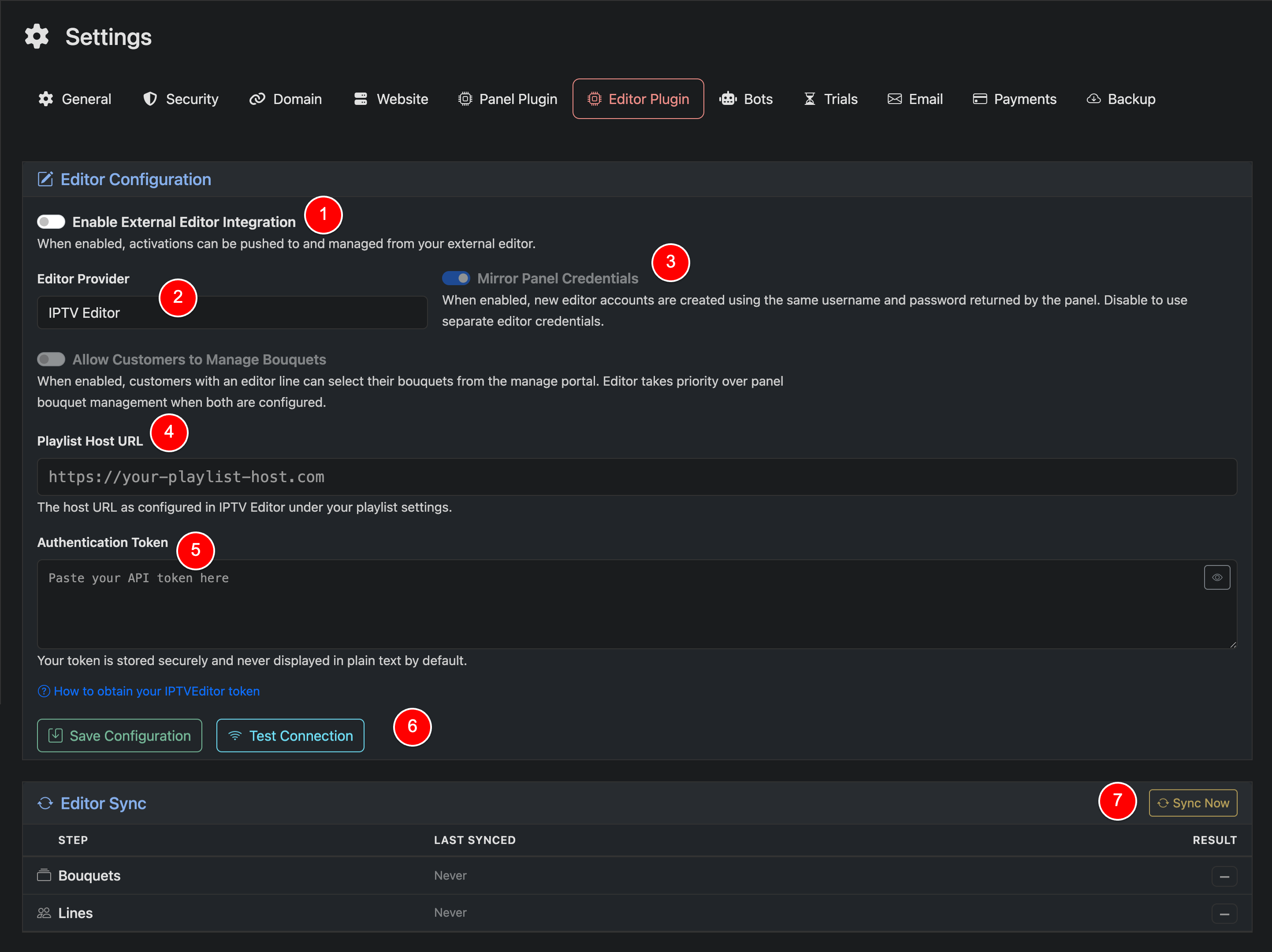
Use this page to connect Panelr to your external editor. This allows Panelr to manage playlists, categories, and line data through the editor.
Enable External Editor Integration (1)
Turn this on to enable editor support for your installation.
Editor Provider (2)
Select the editor you want to use. Currently, IPTVEditor.com is supported.
Mirror Panel Credentials (3)
When enabled, editor accounts will use the same username and password as the panel. When disabled, Panelr will generate separate credentials for the editor.
Playlist Host URL (4)
Enter the host URL exactly as configured in IPTVEditor under your playlist settings.
Authentication Token (5)
Paste your IPTVEditor API token. Use the link below the field for instructions on how to obtain it.
Save and Test (6)
Click Test Connection to verify your setup, then click Save Configuration.
Editor Sync (7)
Click Sync Now to pull data from the editor.
Once saved, editor syncs run automatically in the background on a scheduled basis. No manual action is required.
When an editor is enabled, editor categories replace panel bouquets for user selection. Any bouquet changes made by admins or customers will update in the editor.