Setup Wizard
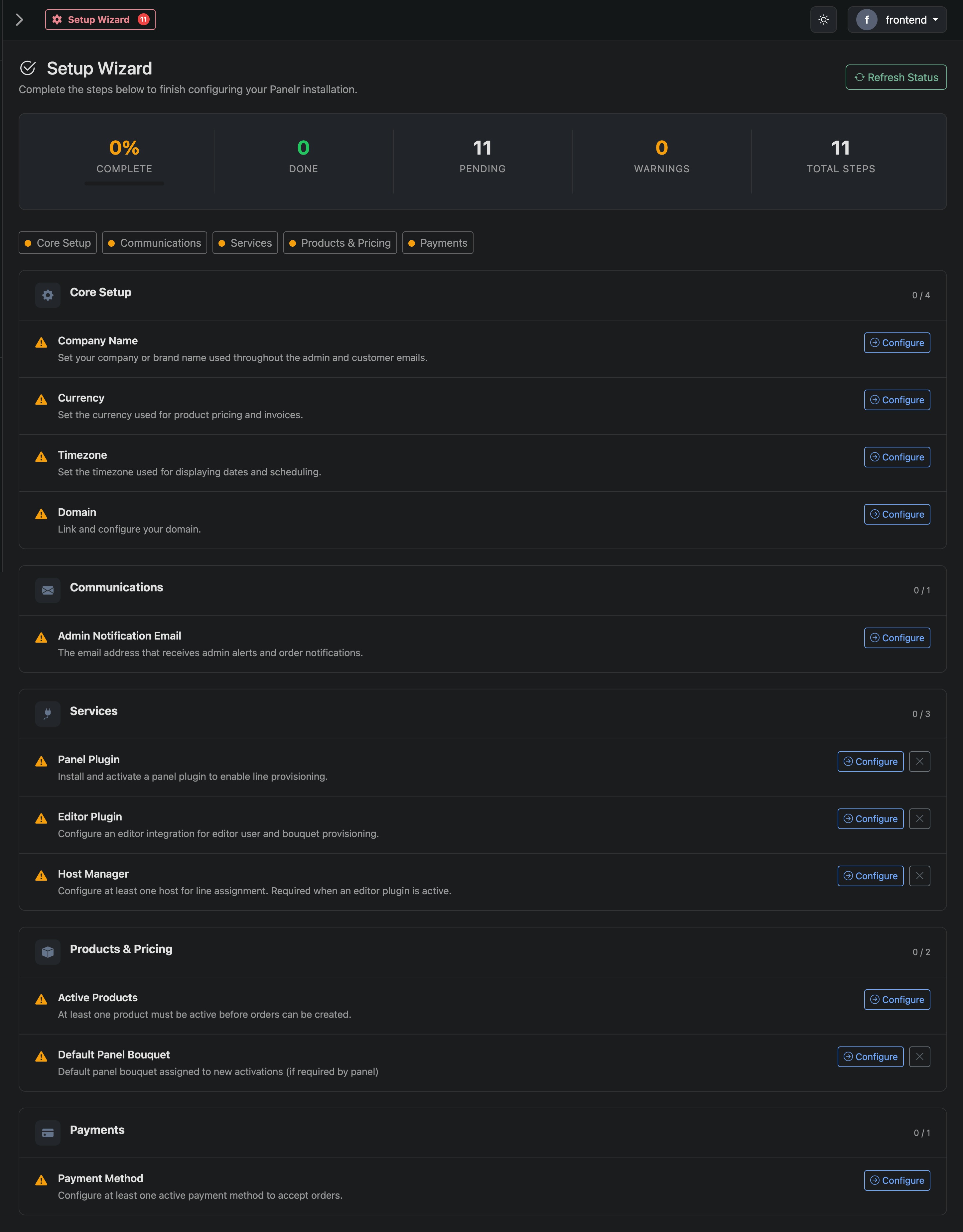
Setup Wizard Overview
The Setup Wizard walks you through the required steps to get your Panelr installation fully operational. Each section ensures a critical part of your system is configured before you begin accepting orders and provisioning lines.
At the top, you’ll see your progress:
- Complete / Done / Pending / Warnings
- A real-time view of what’s left before launch
Accessing the Setup Wizard
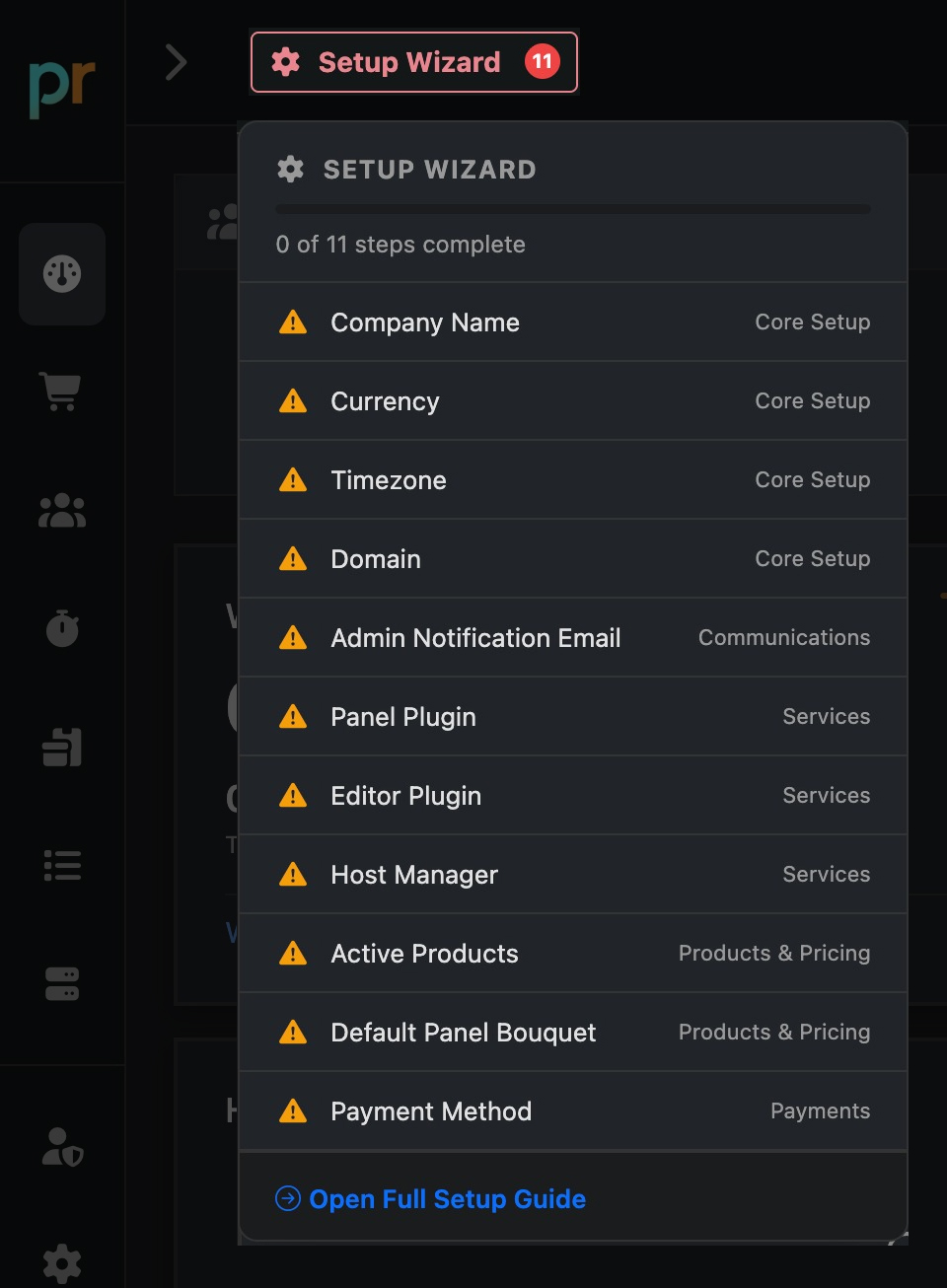
If your account requires setup, the Setup Wizard will appear in the navigation with a badge indicating the number of pending tasks. Click Setup Wizard to view and complete the required steps. Once all required items are finished, it will no longer appear.
Sections Explained
Core Setup
Basic system identity and defaults.
- Company name (used across emails and UI)
- Currency (pricing + invoices)
- Timezone (scheduling + logs)
- Domain (customer-facing access)
- Communications
Communications
Where system notifications go.
- Admin email for alerts and order activity
Services
Your backend integrations.
- Panel plugin (provisioning)
- Editor plugin (bouquets / content control)
- Host manager (line assignment)
Products & Pricing
What you're selling.
- At least one active product required
- Default bouquet (if your panel requires one)
Payments
How you get paid.
- Minimum one active payment method required to accept orders
How it Works
Each item shows a status:
- Pending → not configured
- Complete → ready
- Warning → optional but recommended
Click Configure to complete a step. Progress updates automatically.
When You're Done
Once all required steps are complete:
- Orders can be created
- Payments can be processed
- Services can be provisioned