Managing Users
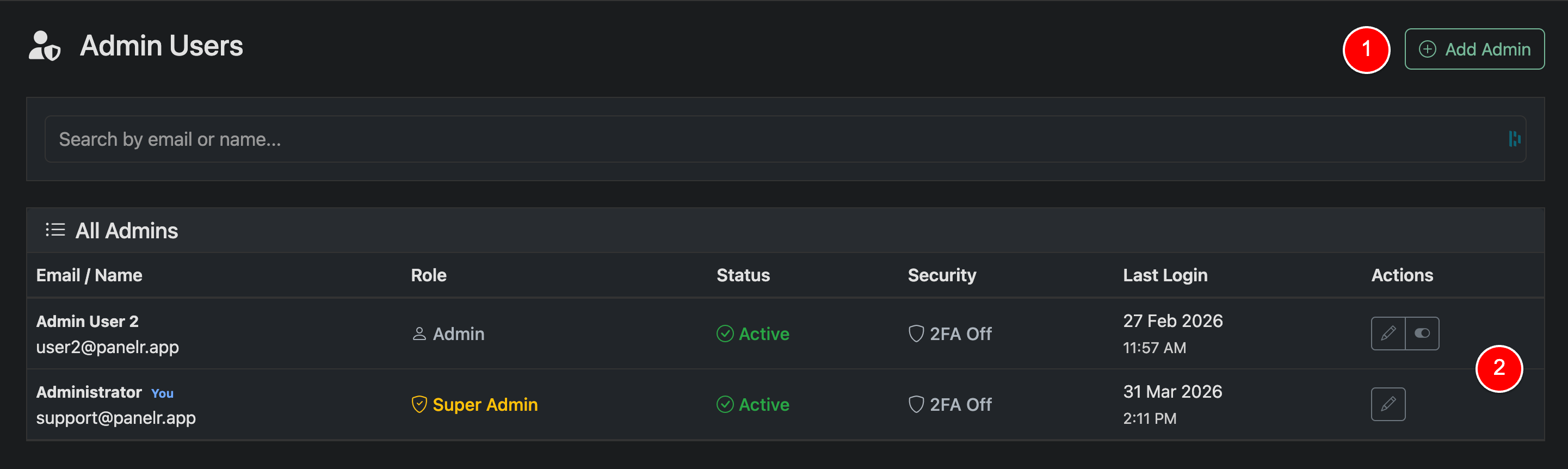
The Admin Users page allows you to manage access to your Panelr installation. You can add new administrators, control permissions, and enable or disable access as needed.
Table Overview
The table provides a complete view of all admin users:
- Email / Name — User identity
- Role — Access level (Admin or Super Admin)
- Status — Active or Inactive (inactive users cannot log in)
- Security — Shows if 2FA is enabled
- Last Login — Most recent login timestamp
- Actions — Edit and status controls
Actions
Add Admin (1)
Click “Add Admin” to create a new user. You will define:
- Name and email
- Role / access level
Edit User / Manage Access (2)
Edit (pencil icon): Update user details including name, email, role/access level, or remove the user.
Status Toggle: Set a user as Active or Inactive. Inactive users cannot log in, and access can be restored at any time by reactivating.
Notes
- Super Admins have full access to all system features
- Regular Admins have restricted access to manage lines, trials and work orders. They do not have access to system settings.
- Disabling a user is preferred over deletion when access may be restored later
- 2FA status helps monitor account security across your team
Enable two-factor authentication (2FA) to add an extra layer of security to your account. Even if your password is compromised, 2FA helps prevent unauthorized access. We strongly recommend all users enable 2FA to protect their account and sensitive data.