Work orders are used to manage activations, renewals, trials, and upgrades for customers. They can be created manually for direct sales, support-assisted orders, or manual billing, and are also generated automatically through the system.
Create a New Work Order
Click New Order in the top-right corner of the Orders page to create a new work order.
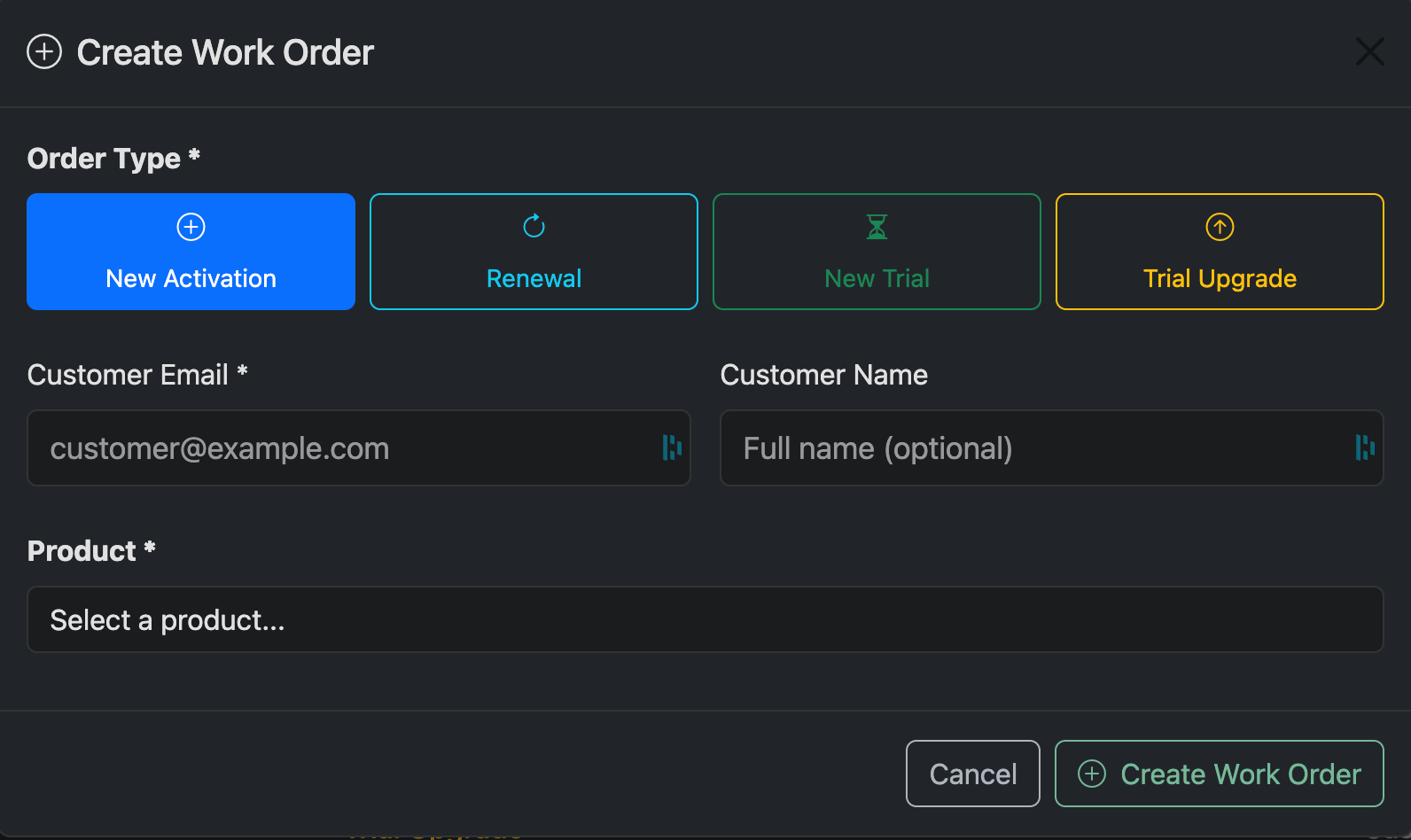
Choose the Type of Work Order
Select the Order Type, enter the Customer Email (required), optionally add a Customer Name, and choose a Product, then click Create Work Order.
Review and Create the Work Order
Create & Process the Order
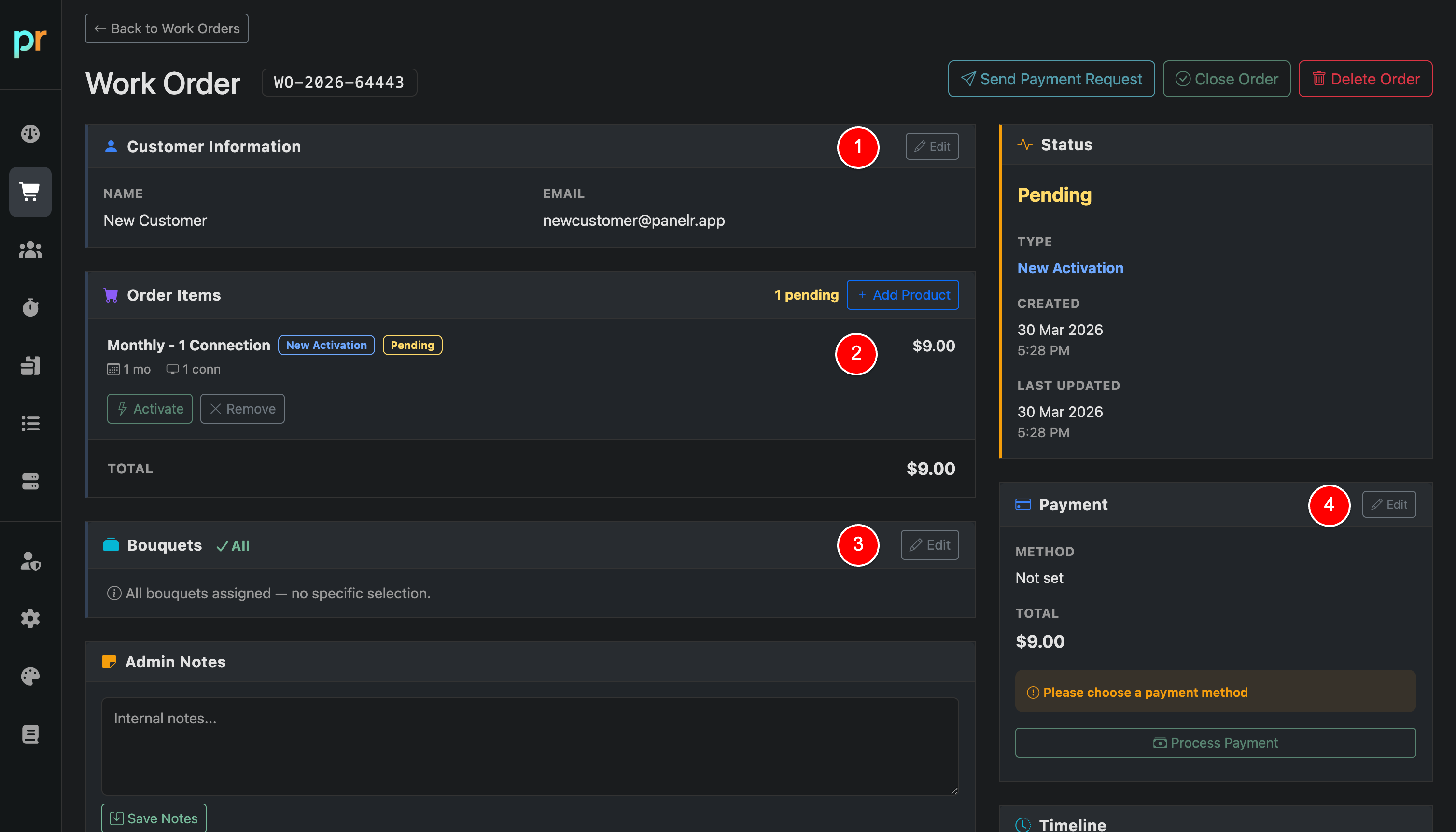
Customer Information (1)
Enter or confirm the customer’s details, including name, email, and any identifying information.
Order Items (2)
Click 'Add Product' to select the product(s) for the order if not already populated. Multiple products can be added to a single work order.
Bouquets (3)
Select the content package or bouquet ID from your panel to assign to the line. This determines which channels or services the customer can access.
If an editor is configured, these selections will map to the categories defined in your editor and automatically sync.
If you have an editor configured, these will select categories as defined by your editor and sync with your editor
Payment (4)
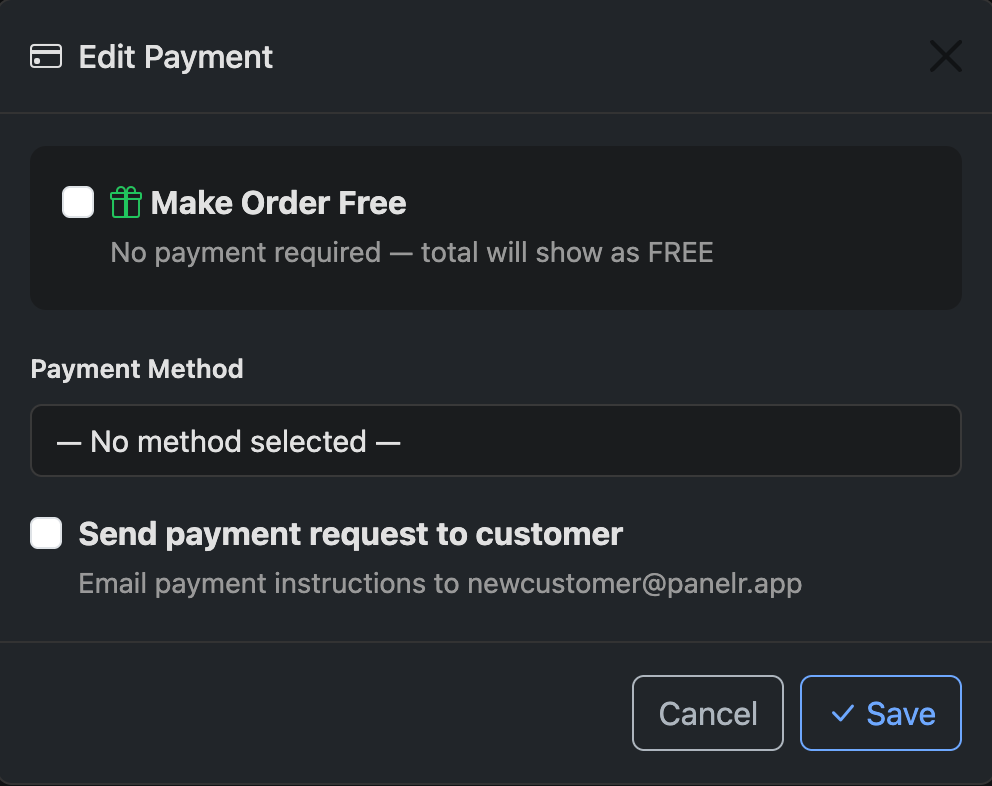
Choose Payment Method
Select a payment method for the customer to complete the order, or mark the order as free. Your order is now ready to send a payment request to the customer. If you have already received payment, or you are creating a free order, see Process An Order.
Send Payment Request to Customer
Send Payment Request
After selecting a payment method, you can send a payment request to the customer. Once sent, the order status updates to Pending Payment and the customer receives instructions to complete checkout. Payment methods can be configured in Payments.
If the order is free or payment has already been collected, refer to Process An Order to complete and close the order.