Process An Order
Process a Work Order
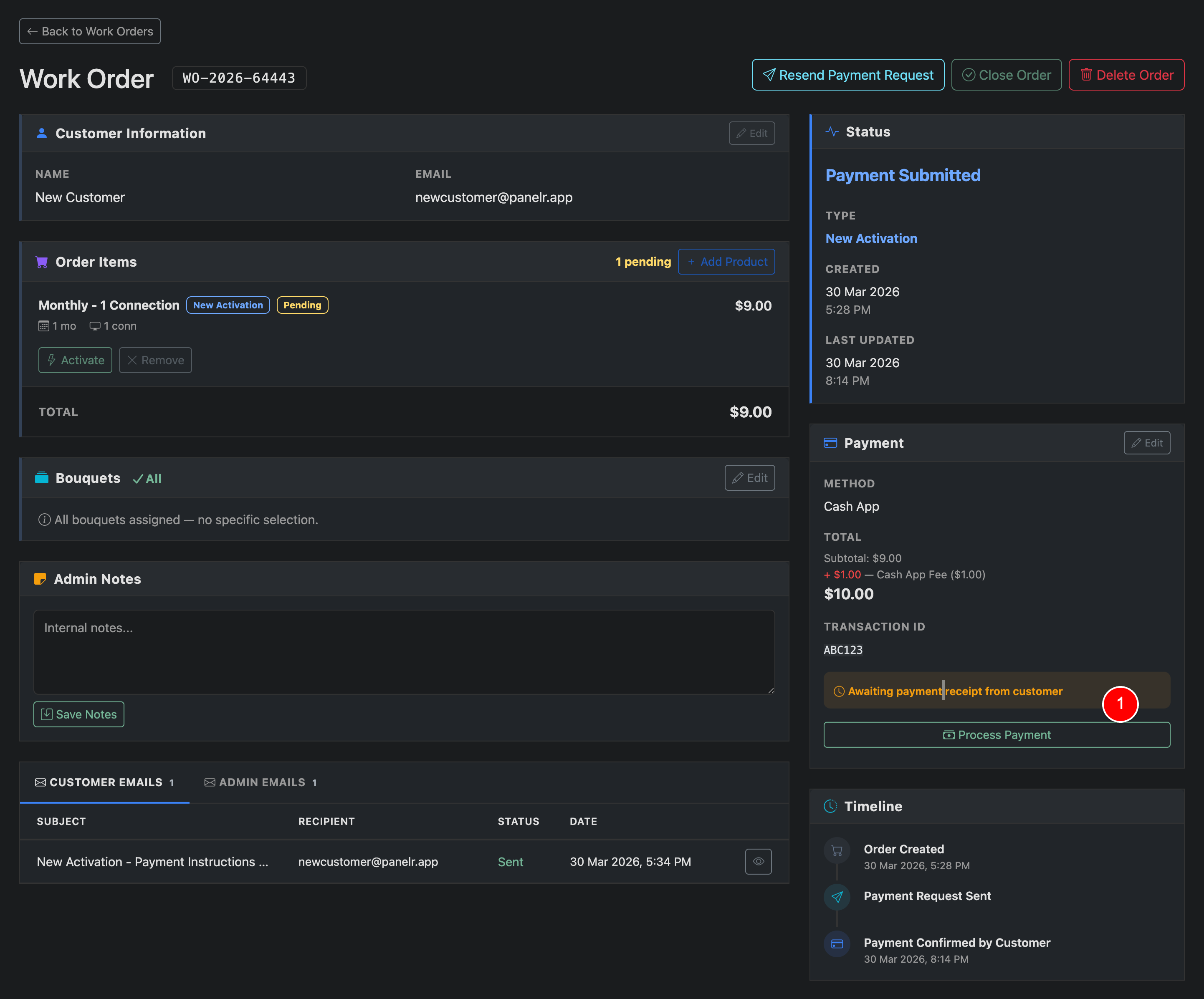
If a payment request is sent using an automatic payment processor (API), the work order will process automatically. If a Panel plugin is configured, items will be provisioned automatically. If an editor is configured, the corresponding editor line will be created and the customer will receive their connection details.
If a manual payment method is used, the customer will mark payment as submitted. The order status updates to Payment Submitted, and you will receive a notification to review it. Once you confirm payment, you can process the order items and close the order.
To begin, click the Process Payment (1) button.
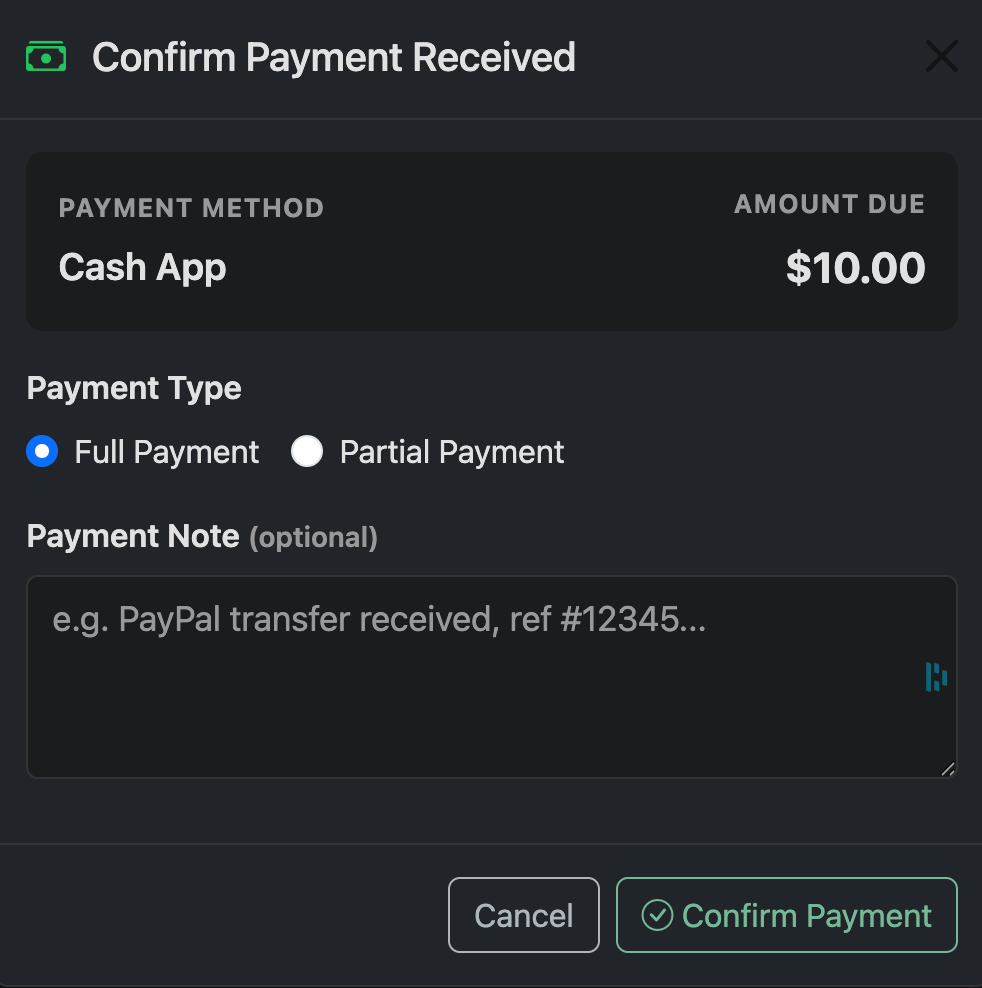
You can record a full or partial payment. If only part of the total is received, recording a partial payment allows you to send an updated payment request for the remaining balance. The customer will receive an updated invoice showing the amount paid and the balance due.
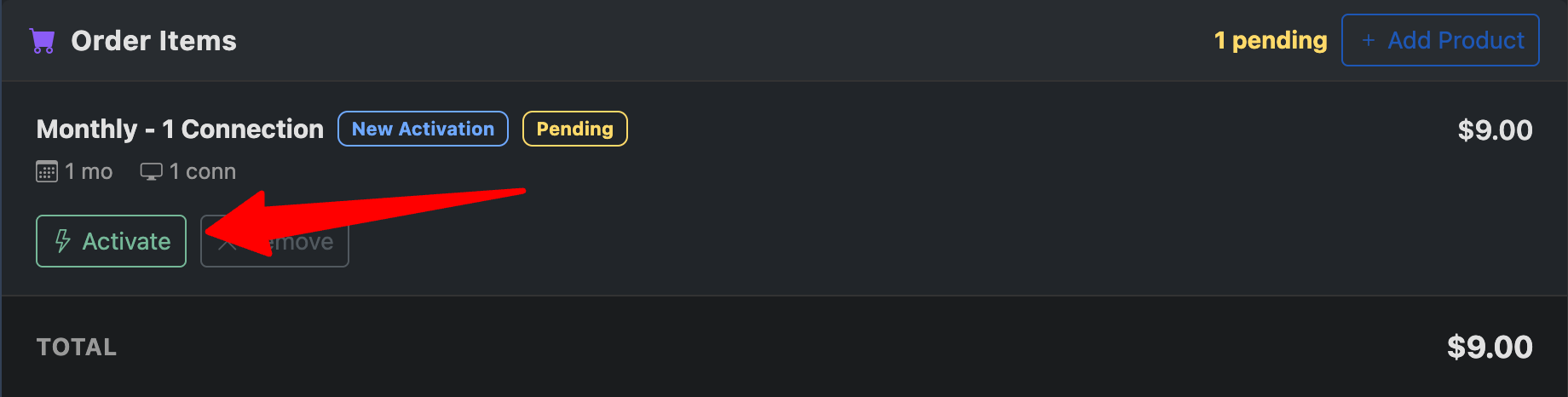
After payment is confirmed, activate each order item by clicking the Activate button next to it.
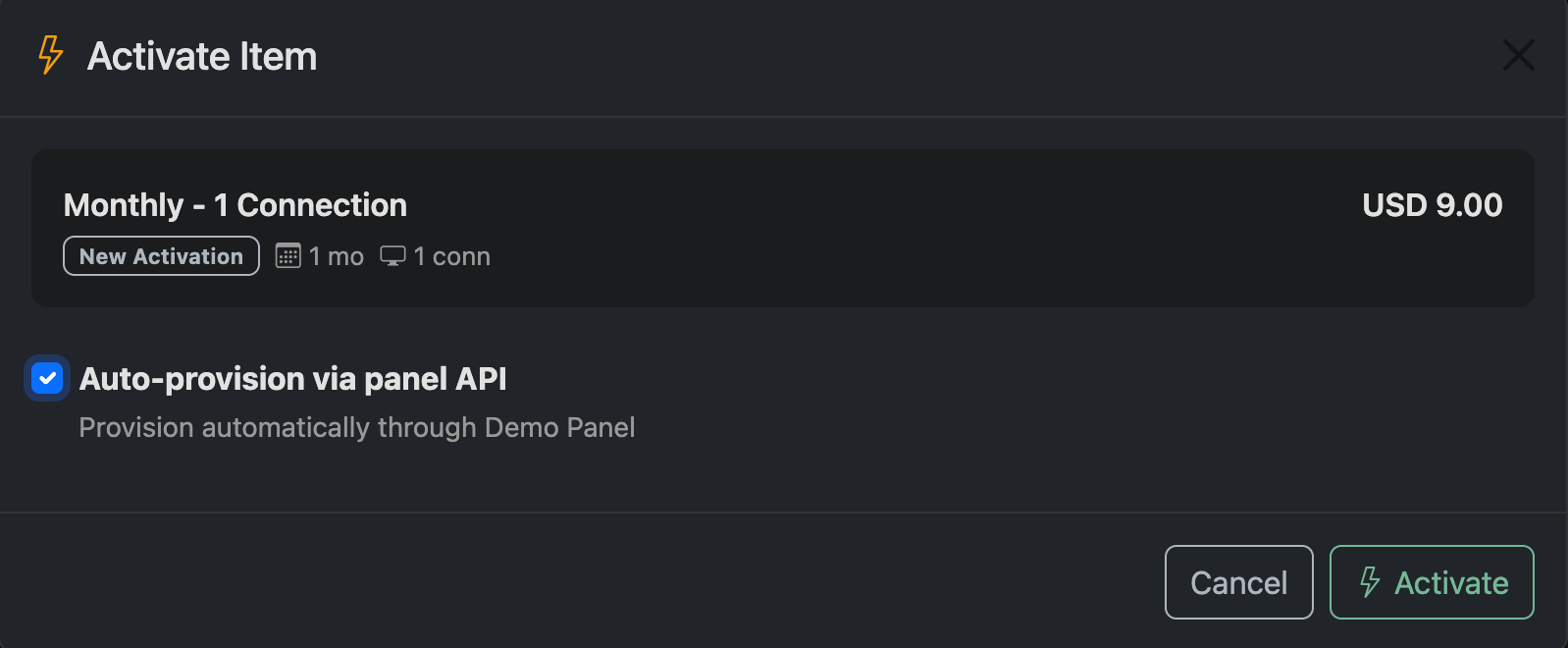
When activating an item, if a panel is configured, Auto Provision is enabled by default. If the line was already created outside of Panelr, disable this option and manually enter the host, username, password, and optional editor ID.
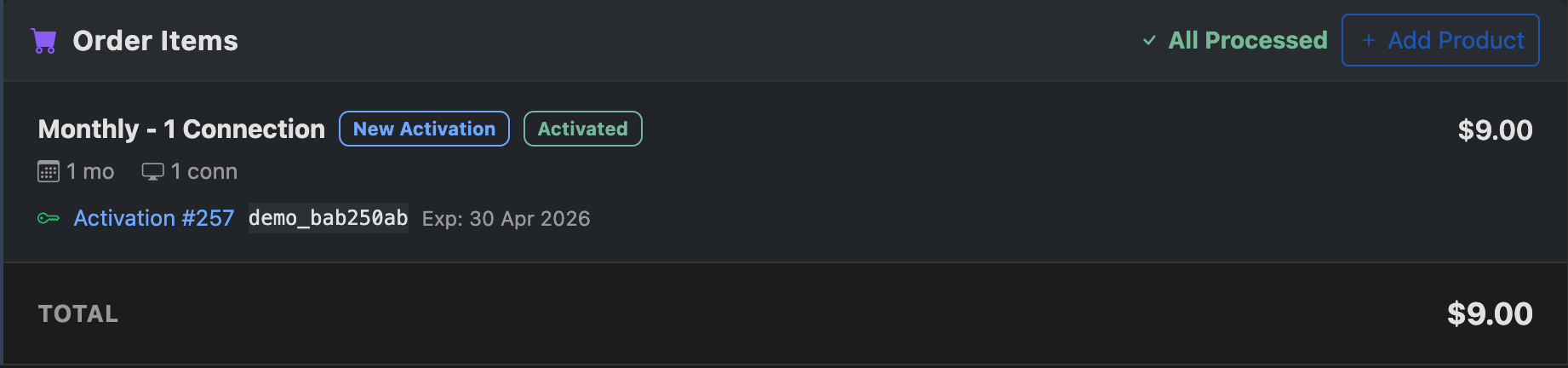
Once activated, the item status will update and the generated line username will appear. Clicking the username will open the line.

After all items are activated, click Close Order in the top toolbar.
The close order confirmation will appear. By default, Send connection details to customer is enabled. Leaving this checked will email the customer their order and connection details. If multiple items were included, all connection details will be sent.
After an order is completed, it can be Voided or Disputed. Refer to the voids and disputes section for more details.