The Discord bot gives the same menu inside your Discord server. It takes a few more steps than Telegram.
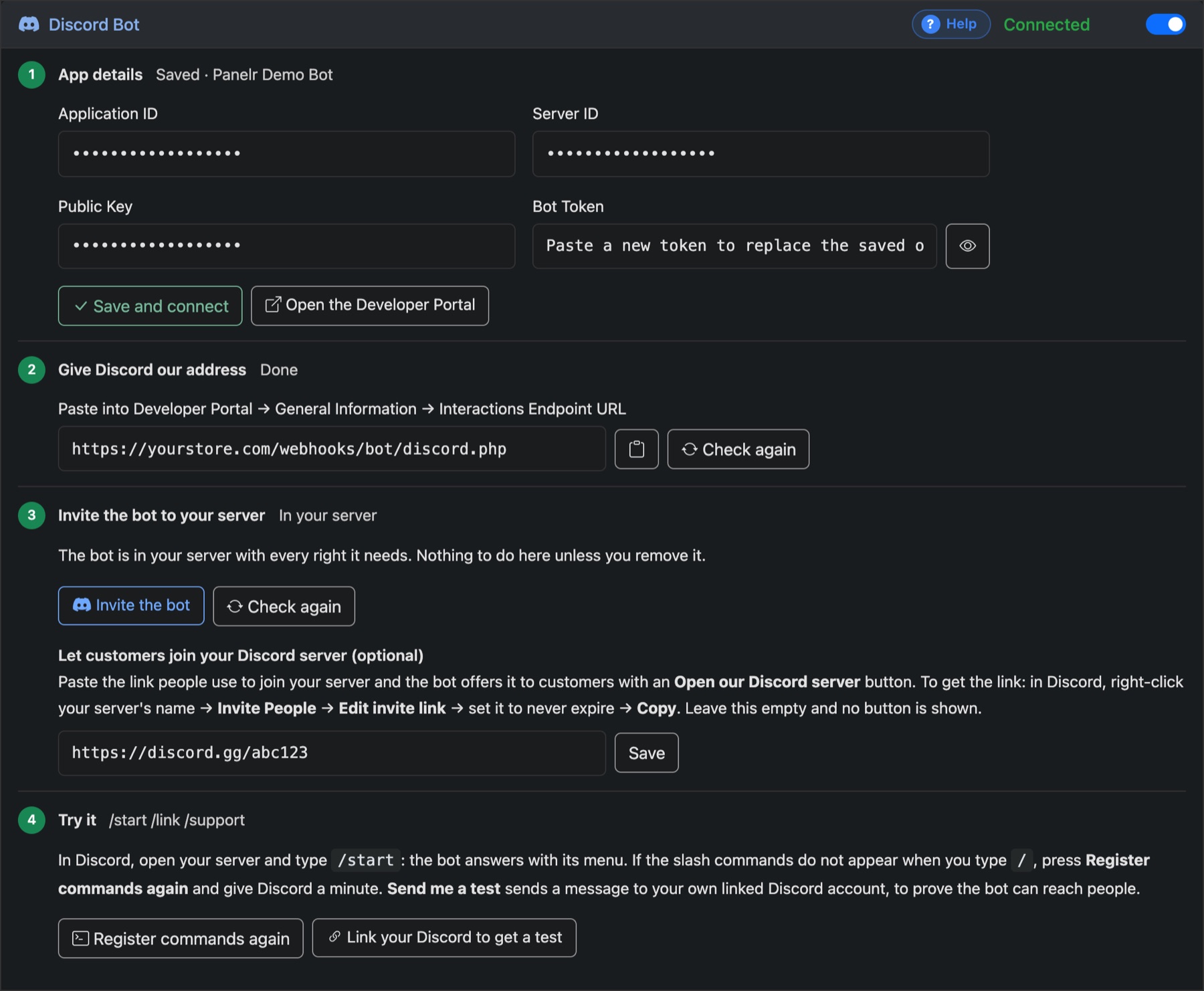
- App details. At discord.com/developers, press New Application. Copy the Application ID and Public Key from General Information, and a Bot Token from the Bot page. For the Server ID, turn on Developer Mode in Discord's settings, then right-click your server and choose Copy Server ID. Paste all four into Panelr and press Save and connect.
- Give Discord our address. Copy the address Panelr shows into the Developer Portal under Interactions Endpoint URL, and save there. Press Check again.
- Invite the bot. Press Invite the bot, pick your server and approve. Optionally paste your server's own invite link so the bot can offer customers a button to join.
- Try it. In your server, type
/start. The commands are/start,/supportand/link. If they don't appear, press Register commands again and give Discord a minute.
Discord never passes a typed message to a bot, so customers use its buttons and commands. To write to support they use /support.