
The Site Editor is where you build your store. Everything you change shows on the page in front of you as you make it, and nothing reaches customers until you push it live. Open Site Editor from the admin menu.
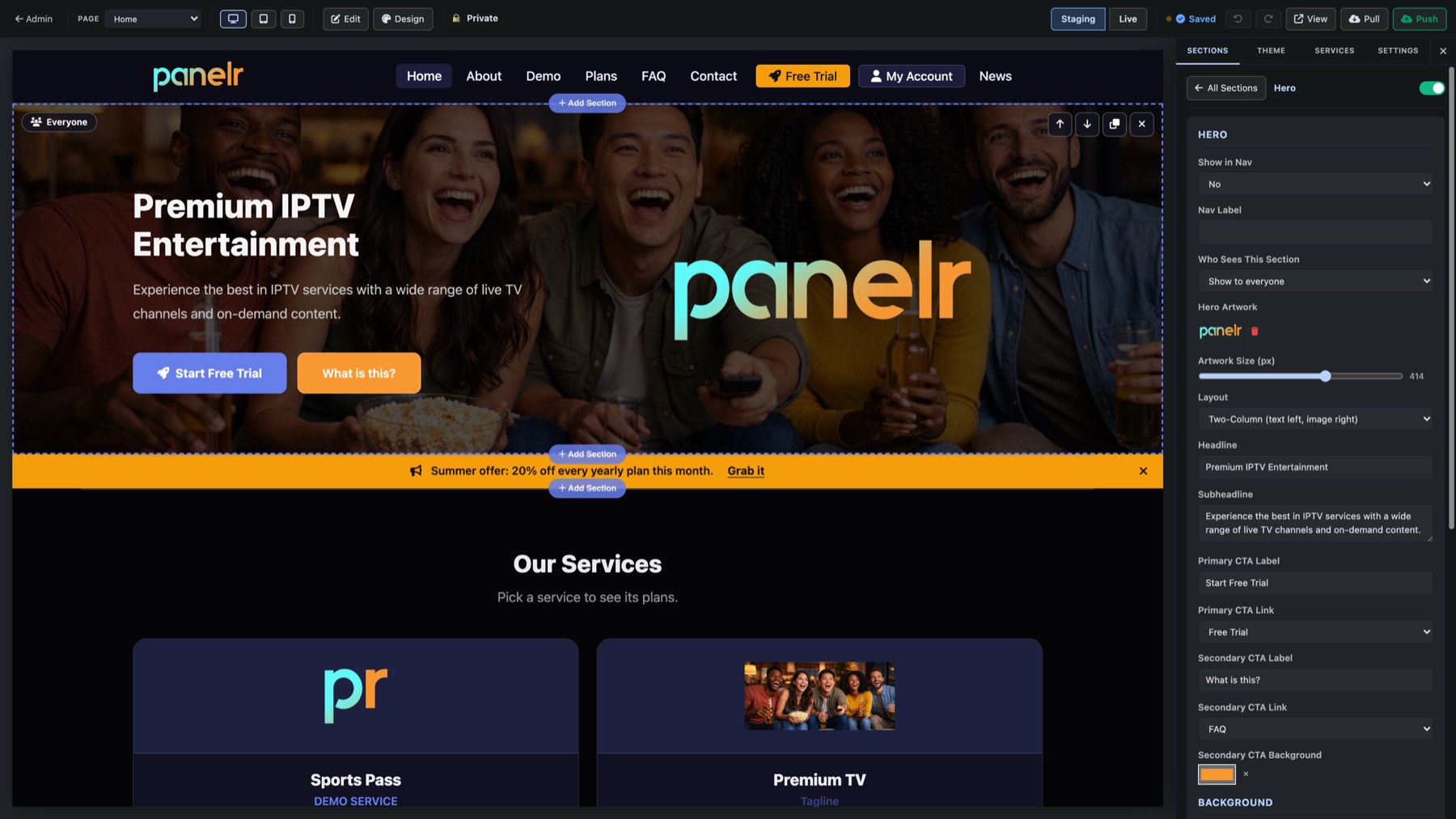
Every page of your store
Pick a page from Page at the top:
- Home, and a page for each service you sell
- Trial, Member Account and Checkout
- Apps and News
- Private Gate, the door visitors see when your site is private
- Emails, the look of every email Panelr sends
Member Account and Checkout show a sample customer and order, so you can style them without a real one.
Start from a look
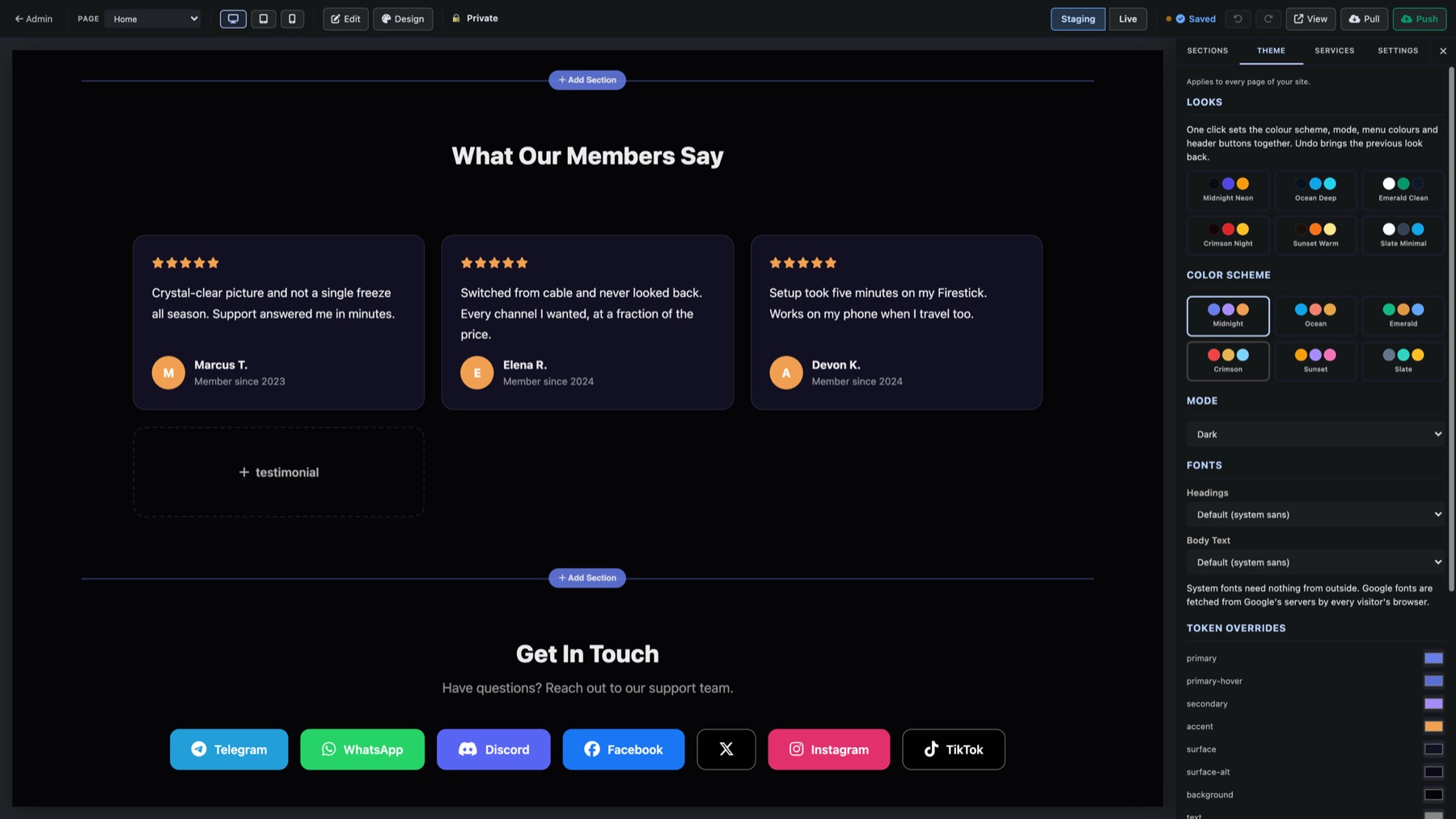
Press Design to open the Theme tab. It changes every page at once.
- Looks: six ready-made styles that set the colours, menu and header buttons in one click. Undo brings back the old look.
- Color Scheme: six palettes, each in Dark or Light mode.
- Fonts: separate fonts for headings and body text, from system fonts or 13 Google fonts.
- Token Overrides: set any single colour yourself, such as buttons or backgrounds. Each one resets on its own.
- Custom CSS, for anything else.
Build pages from sections
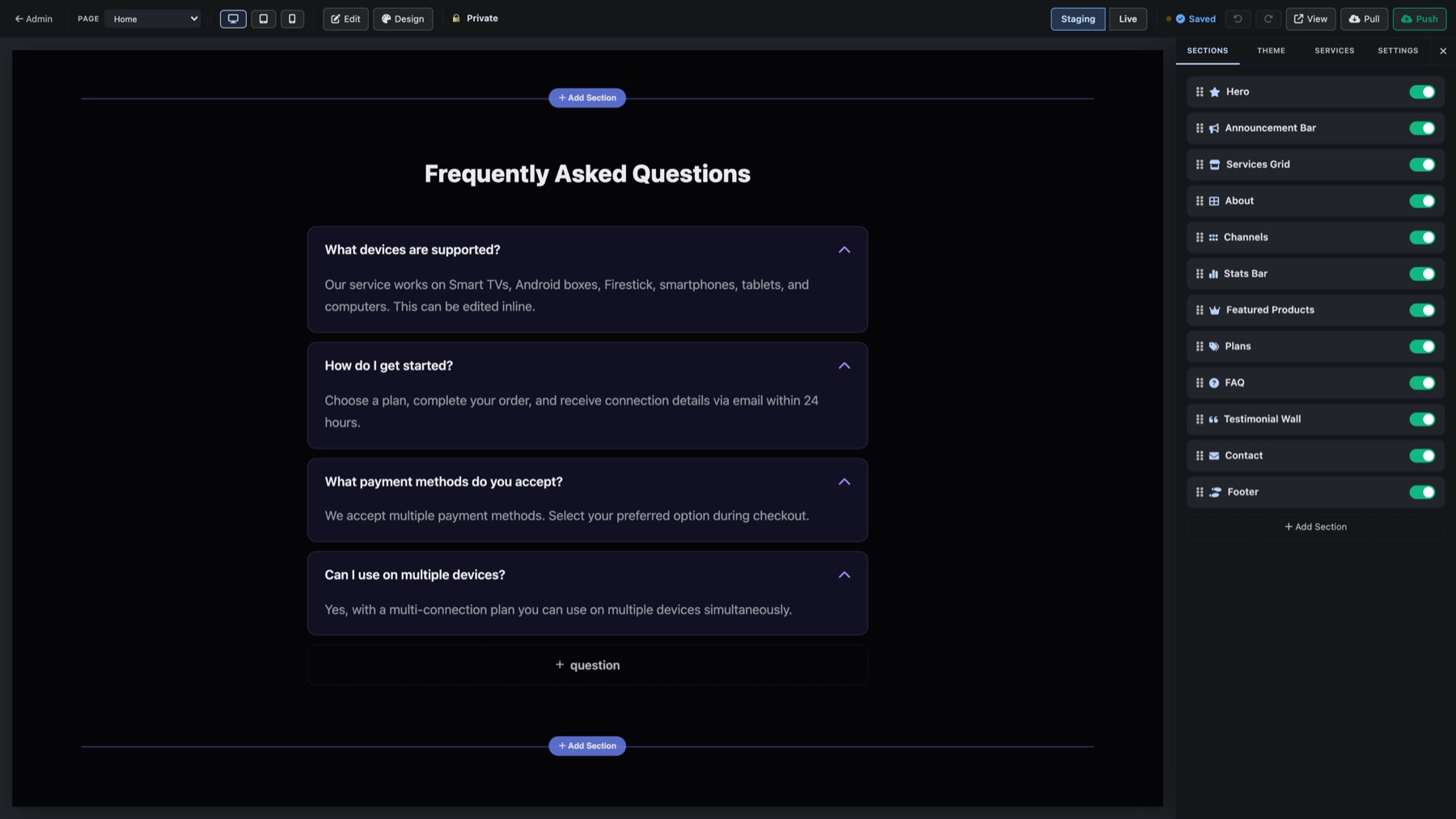
Home and service pages are built from sections. There are 18 kinds:
- Hero, Announcement, Features, Call to Action and Video
- Pricing, Featured Products, Compare Plans and Services Grid
- Testimonials, Slider, Stats, Logo Grid and Latest News
- FAQ, Contact, Text and Footer
Press + Add Section in the sidebar, or on the page between two sections to drop one exactly there. Most kinds then offer a few looks to start from.
Every section can be:
- dragged to a new place, duplicated, hidden or removed
- shown to everyone, only to signed-in members, or only to visitors
- added to your menu, with its own label
- given its own background: a colour, a gradient, or a picture with a tint over it
Click anything to change it
Type straight onto the page to change any heading, text or button. Click a button, logo or menu item and a small set of controls opens right beside it: its colours, size, picture or icon. The sidebar holds every option for the section you're in.
- Pictures and logos come from your media library, and you can upload new ones without leaving the editor.
- The Text section has a full writing toolbar: headings, lists, links, pictures and alignment.
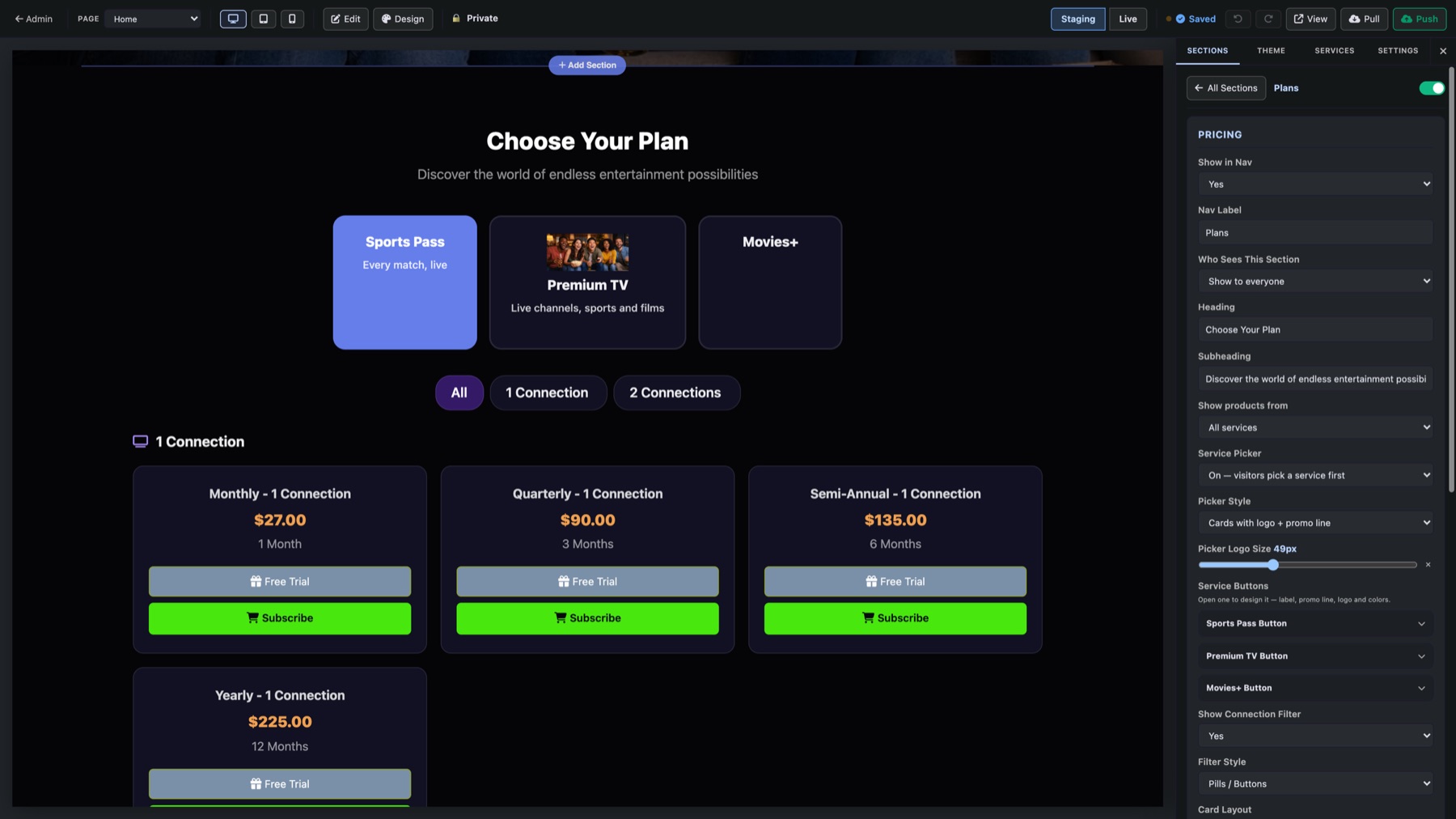
- Pricing, Featured Products and Compare Plans show your real plans and prices as you build.
A page for each service
When you sell more than one service, the Services tab gives each one its own page, turned on when you're ready. Set its logo, tagline, description and accent colour once and the whole site uses them: menus, service cards and any section tied to that service.
Trial, account, checkout and more
These pages have their own layouts to choose from and style:
- Trial: Split, Showcase or Centered, with feature pills, stats, highlights and trust badges
- Member Account: the cards, connection buttons and side panels your customers use
- Checkout: the order, account and payment cards, and how many payment options sit in a row
- Apps: grid, tiles, list, showcase or badges
- News: cards, featured, list, timeline or headlines
- Private Gate: where the form sits, the background and the side panel
Your emails
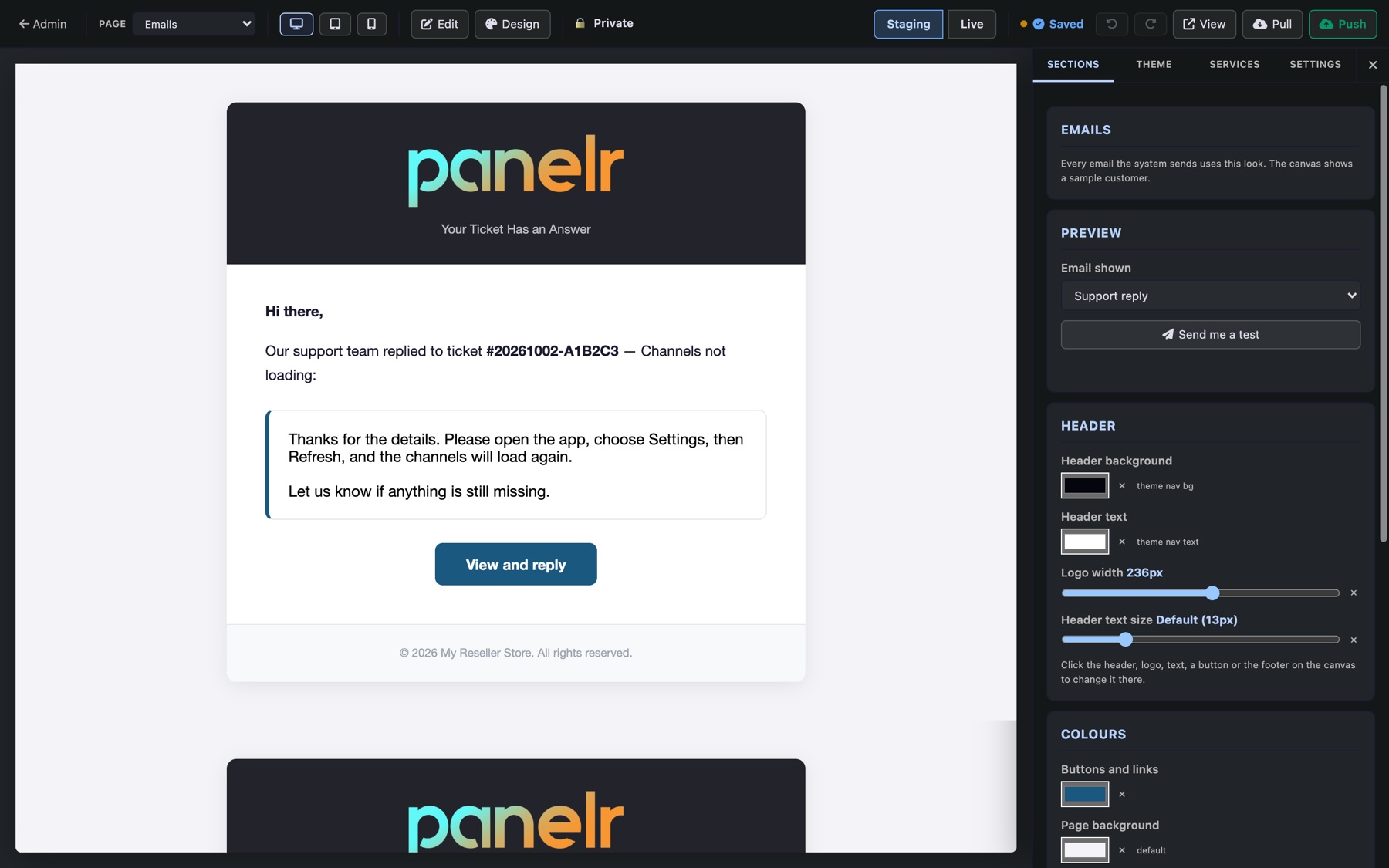
Pick an email under Email shown to see it with a sample customer: order ready, trial ready, plan ending soon, support reply, your messages, password reset and account setup. Style the header, logo, colours and font, then press Send me a test to see it in your own inbox.
Try it before customers see it
- You edit Staging, a private copy that saves as you go. Customers keep seeing Live.
- Push makes your staging copy the live site. Pull starts again from a copy of live.
- View opens the page in a new tab.
- Undo and redo go back up to 60 steps, across every page.
- The device buttons show the page on a computer, tablet or phone.