
A host is a server address your customers connect to. If your panel gives you more than one, Panelr can share lines out between them and put the right address in each customer's connection details. If you only use the address the panel gives, leave hosts off.
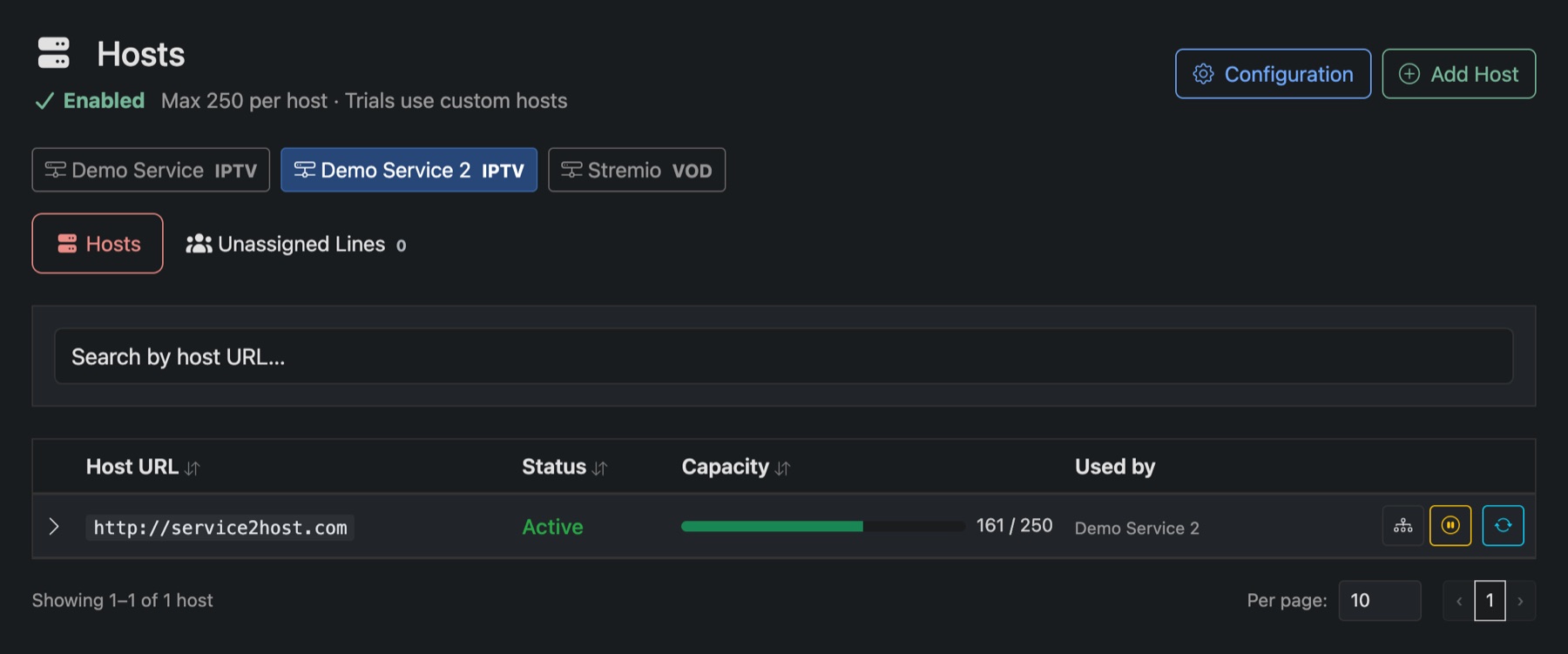
Turn hosts on
- Open Hosts and pick the service along the top.
- Press Configuration. Switch on Enable Hosts Management and set Max subscribers per host.
- Choose whether trial lines use your hosts too.
- Press Save Configuration.
Add a host
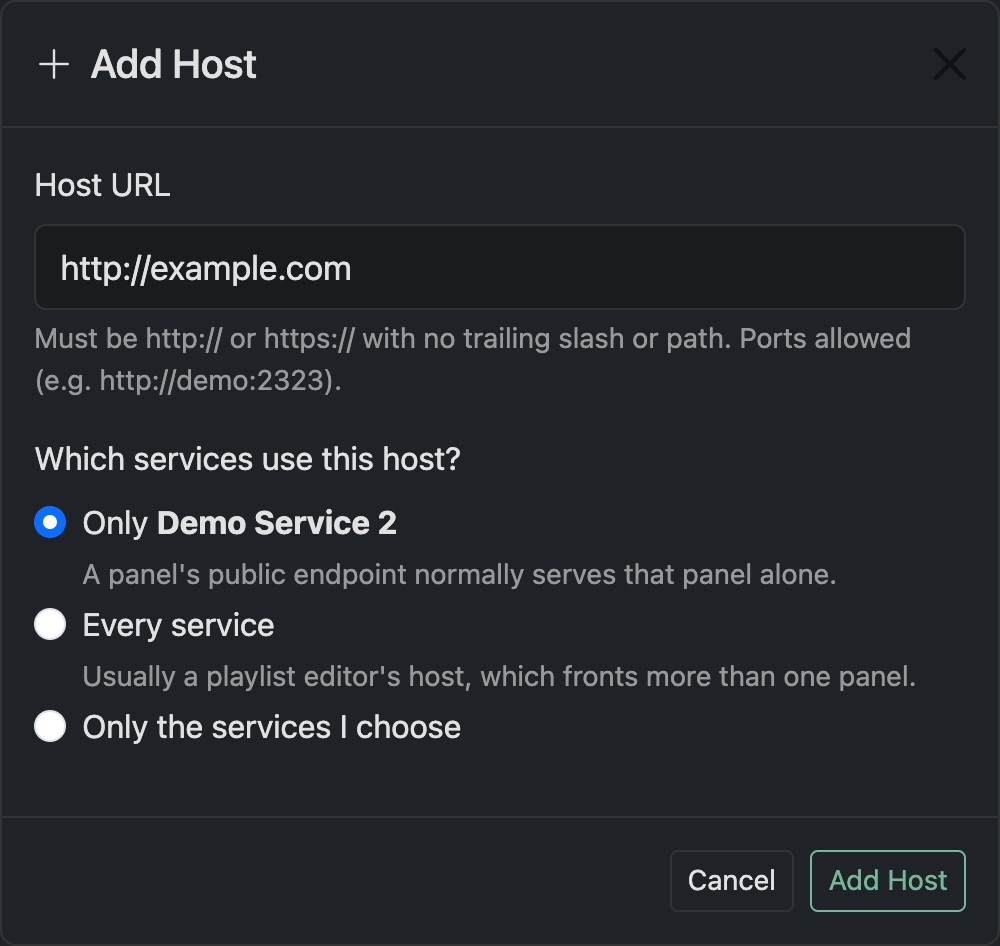
- Press Add Host and enter the address, for example
http://tv1.yourdomain.com:8080. - Choose which services use it. Usually Only this service, since a panel's address serves that panel alone. Every service is for an address that fronts several panels, like a playlist editor's.
- Press Add Host.
How lines are shared out
New lines go to your hosts in the order you added them. Each fills up to the maximum before the next one starts. Unassigned Lines lists lines that have no host yet.
Changing a server
To retire a host, use Replace Host. It moves every line on it to another host, and can email those customers their new details. A host that still has lines can't be switched off or deleted until you do.