
Customers open tickets from their account, from your Telegram or Discord bot, or from a connected store. You answer them on the Support page.
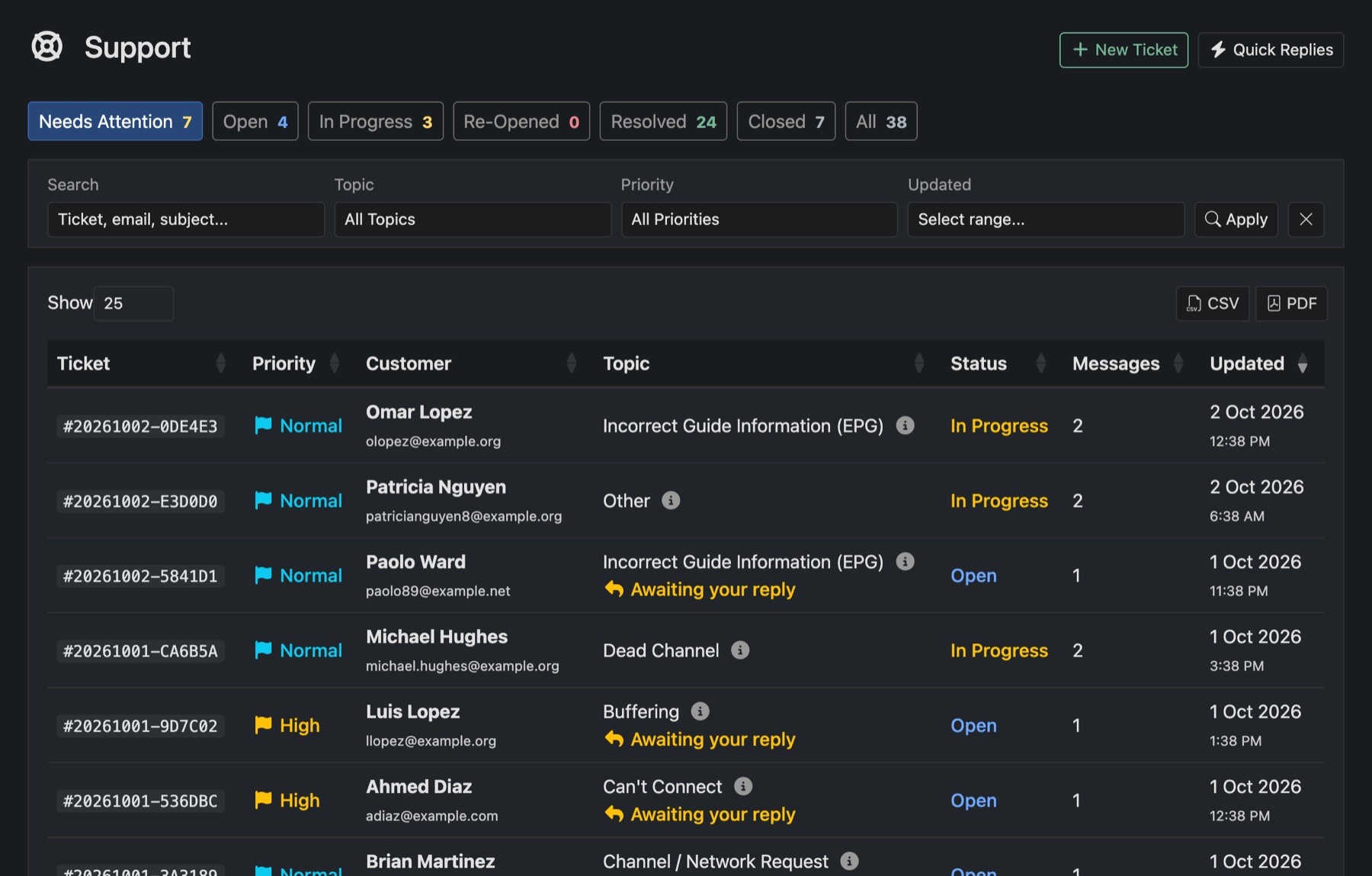
Answer a ticket
- Open Support. Needs Attention shows everything open, in progress or reopened.
- Click a ticket. You see the conversation, the customer, their lines and their other tickets.
- Write under Message to Customer, or press a Quick Response to drop in a saved answer.
- Press Send Reply, Send & Resolve or Send & Close.
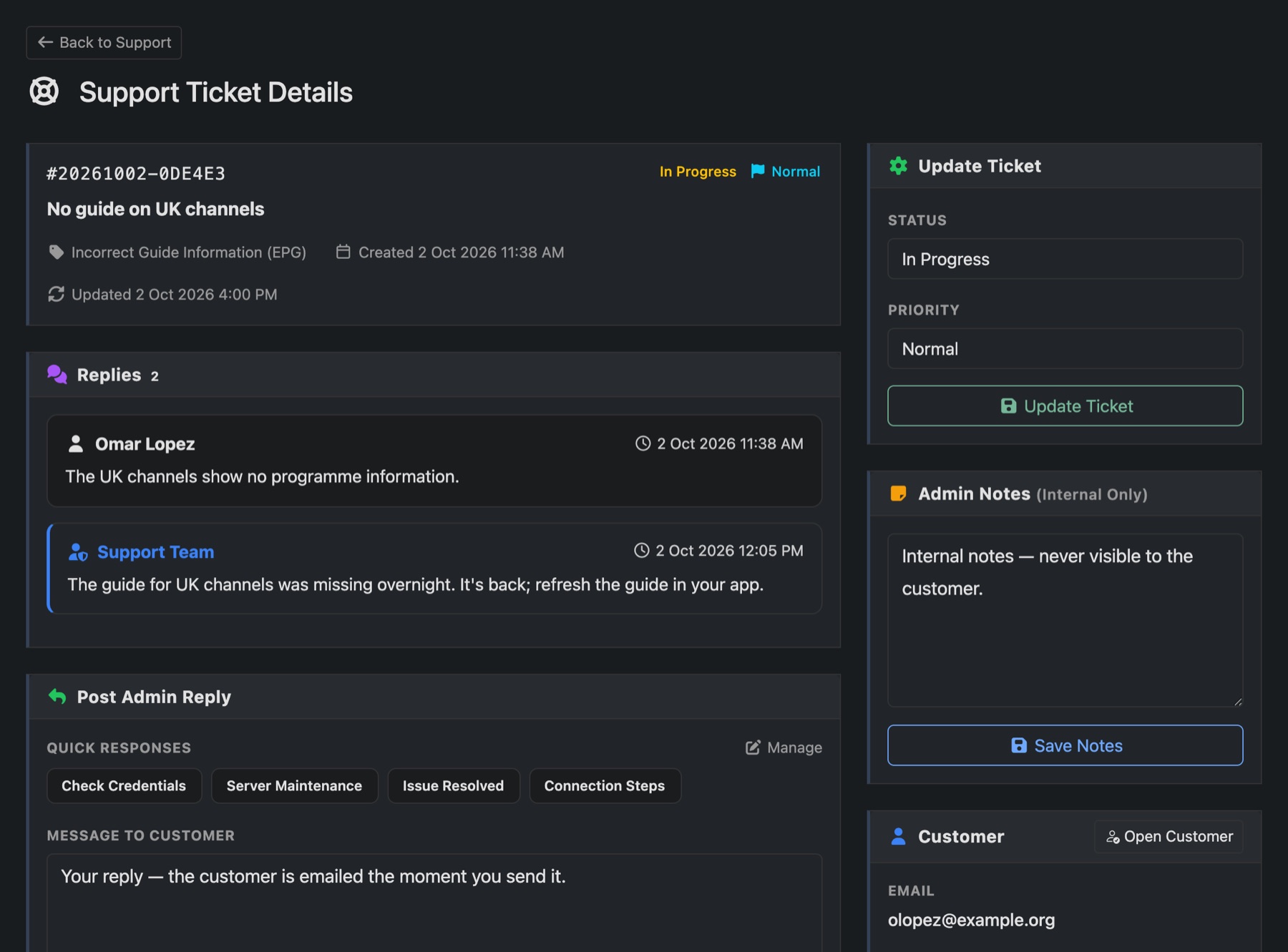
Your reply reaches the customer in their linked chat if they prefer that, or by email. Admin Notes are for you only.
Statuses
- Open: not answered yet.
- In Progress: you've answered. Your first reply moves it here.
- Resolved: settled. If the customer replies, it reopens.
- Closed: finished. The customer can't reply to it.
You can open a ticket for a customer yourself with New Ticket, for example after a phone call.